
Reporting
Use Reporting to create operational, finance, and management summary reports.
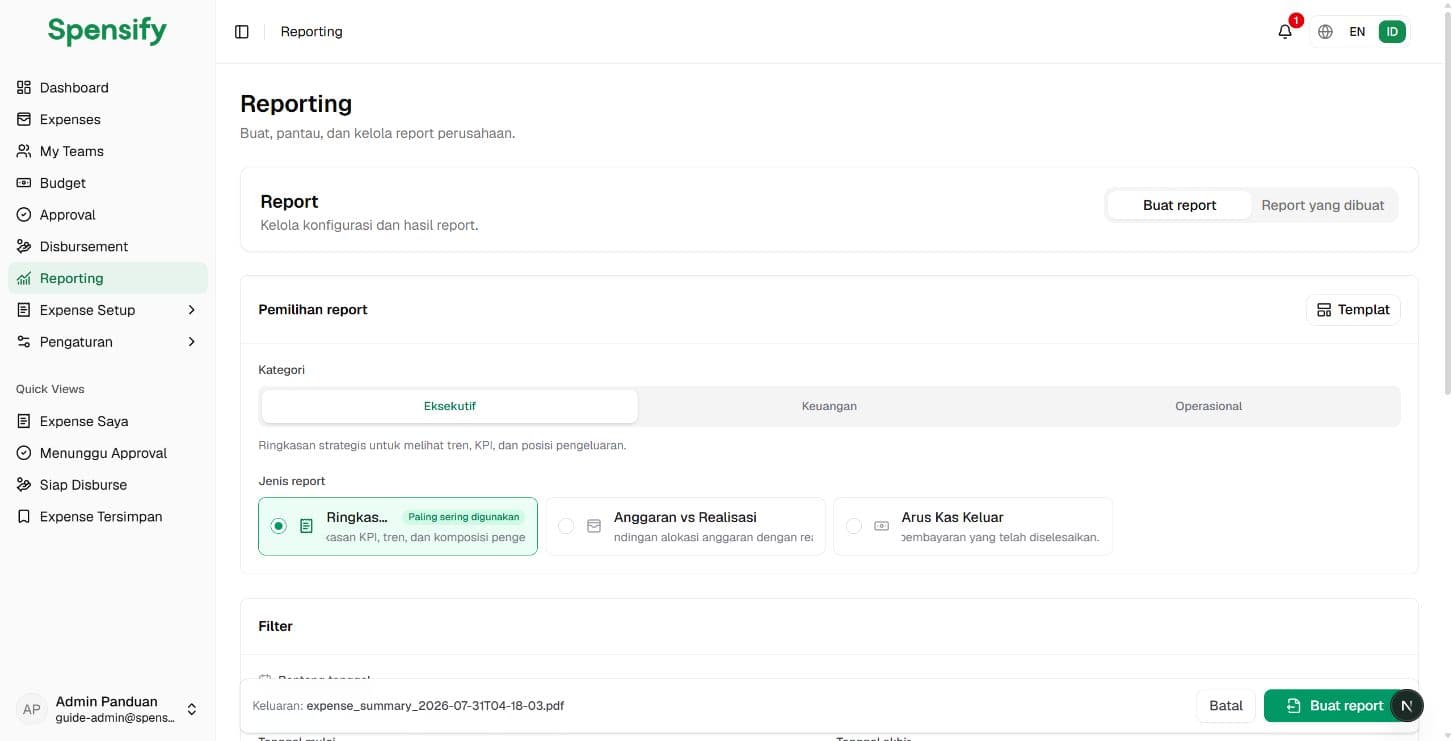
Generate a report
- Open Reporting > Generate report.
- Select an Executive, Finance, or Operational report category.
- Select the report type.
- Set the date range.
- Select teams and employees to limit the scope if needed.
- Open advanced filters when needed, then select category, budget, payment method, approval status, record status, currency, amount range, vendor, or keyword.
- Select PDF, Excel, or CSV.
- For PDF, select the template, orientation, and paper size.
- Set the file name.
- Select Generate report.
The report is prepared in the background, so you can continue other work while it completes.
Select a report type
Available report types may include:
- expense summary and expense details;
- budget utilization and budget versus actual;
- approval completion time;
- expenses by employee, team, category, vendor, or payment method;
- possible duplicate monitoring;
- receipt reading performance;
- disbursement summary, outstanding payments, and cash outflow.
The available options depend on your access rights.
Monitor generated reports
- Open Generated reports.
- Check the report status:
- Queued: waiting to start;
- Running: being prepared;
- Completed: ready to view or download;
- Failed: could not be generated;
- Expired: no longer available.
- Select View or Download for a completed report.
- Use Retry for a failed or expired report.
- Use Cancel for a queued or running report you no longer need.
- Delete reports that do not need to be retained.
Contact your administrator if report generation is unavailable or continues to fail.
Recommended practices
- Use a clear date range and filters so the result is easy to review.
- Choose PDF for a ready-to-read report, Excel for further analysis, and CSV for simple tabular data.
- Check the currency and team scope before sharing a report.
Next
Continue to Notifications.